MyToyota app let you be in control of your car wherever you are. It is easy to use and it will provide you with unique features that bring your experience to a new level beyond driving. You can plan journeys, locate your parked car, find information on when your car is due to receive maintenance, check your vehicle data and receive important notifications about your car, as well as control Climate System, Doors and Hazard lights of your car remotely.
The MyToyota App
The MyToyota app is the perfect companion for your car. Monitor your driving, schedule charging, plan trips, and benefit from additional features with Connected Services. It’s a world of useful functionality in your pocket, designed to make everyday life more convenient.
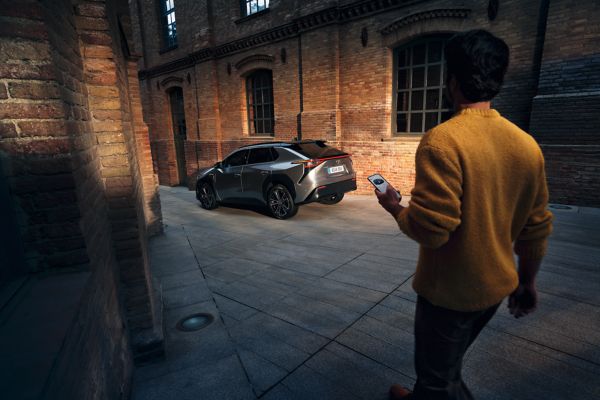
MyToyota App
Complete control, in your pocket
More useful and user-friendly than ever, the MyToyota app puts you in complete control of your car from your smartphone. Designed to make everyday life more convenient, more secure and more fun, the app sits at the heart of Toyota Connected Services. From remote charging control to range optimisation and cabin pre-conditioning* to easy journey planning, it’s a world of useful functionality in your pocket.
MyToyota app
-
Driving Analytics
-
Driving analytics
Every drive is an opportunity to learn with MyToyota. Track acceleration, braking and speed in real time. The app evaluates your driving style, giving feedback to enhance your experiences every time you get behind the wheel. -
Hybrid Coaching
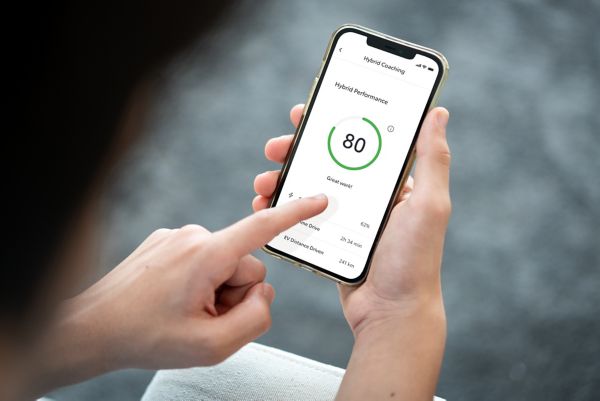
Hybrid Coaching in the MyToyota app maps and analyses your journeys to show you how much time you spend in EV mode, delivering tailored feedback to help you become a smoother, more conscious driver. -
Electric and Plug-in benefits
With a dedicated EV coaching function, the MyToyota app gives tailored tips based on your driving data. It also integrates with HomeCharge and the Public Charging Network. -
-
-
Map Services
-
Map Services
Map Services is your personal travel assistant. Points of Interest, including nearby charging stations, help you keep moving while saved destinations - including Home, Work and Favourites - offer one-tap navigation to save time. -
Plan at home, then send to car
Plan your journeys from the comfort of home, and send the route to your Toyota so that it is ready when it’s time to leave. -
Find your car, anywhere
With Find My Car, locating your Toyota in big car parks or on busy city streets is easy. Click on the map icon to see its last known position and yours, so you can navigate your way back to your car. Tap on the vehicle to see its exact address or to share the location with family and friends. -
-
-
Remote Control*
-
Reassurance with Remote Control
Check your vehicle’s status anytime, anywhere. Unlocking the doors for family and friends, and locking them again afterwards, is as easy as tapping the screen. You can also find your car in a busy car park by activating your hazard lights. -
^Available on selected grades.
Remote Climate
Cold morning? Warm afternoon? Set your preferred temperature before you drive with Remote Climate. From the MyToyota home screen, you can start climate or schedule it in advance. Adjust temperature, activate heated seats, and defrost windows^ - all before you can even leave home. -
-
Connected Services & Subscriptions
Benefit from more features with Connected Services, like Remote Services which let you remotely control your car, and find out more about our subscription packages for these services.
Find out more

Electric and Plug-in Vehicle Owners
With the MyToyota app you can monitor your battery and charging status. It also seamlessly integrates with Toyota HomeCharge and the Public Charging network.
Find our more
Learn how to use the MyToyota app
Here you can find all guides and FAQ's.
View our ‘How to’ guides
View our ‘How to’ videos
Explore our FAQs
Download the MyToyota App
Download the MyToyota app and explore the features available to your Toyota.
FAQs
- All
- About the app
- (De)activation
- Account
- Services
- Technical issue
- Toyota Smart Connect
- Accident Assistant
- Driving Analytics, Hybrid or EV Coaching
The row of 5 icons from left to right stand for following sections: Vehicle - Map - Notifications - Account - Support
You can access Connected Services at any time. Car data is sent to the app when the engine is turned off. You’ll be able to view the details of your last trip after the engine has been switched off. Mobile data coverage is needed to send data, so it may not work in case you park your car underground.
The MyToyota app allows you to be always connected to your car, while the Customer Portal/Personal Site gives you the opportunity to do more extensive reporting, download owner manuals and enable other multimedia features (map updates, Wi-Fi pack, etc.)
Some of the features are available on both the MyToyota app and the Customer Portal/Personal Site (website) using the same login details e.g. online service booking or service history.
Go to the iOS App Store or Google Play Store and search for the MyToyota app. Then simply download the app, entirely free of charge.
Connected Services includes Standard Services and Remote Services. Standard Services include our wide range of digital features designed to ensure your safety, privacy and comfort while you are on the go. Stay informed about your car location, battery level, driving behaviour and history, warning lights and much more. Share your car location with friends and loved ones in your network. Remote Services allow you to remotely access your vehicle to adjust a variety of settings and tailor it to your needs. Access all the essentials needed to optimize your driving experience.
Stay a step ahead while driving with a wide range of functions and get to your destination on time. Tune in to diverse events on the road and find available fuel stations and parking spots (on or off-street). Drive worry-free with internet updated navigation.
FHI encourages you to make the best use of your hybrid and rewards you for driving safely in electric mode—with savings on your insurance renewal premiums. For more on FHI see : https://www.toyota.co.uk/insurance/hybrid-insurance
You decide what data you share with Toyota. You can control this at any moment in the Data Privacy Portal and can withdraw your consent when you want to.
With an appointed dealer in the app you'll get a better experience for such features as Online Service Booking and Warning Lights.
You can check the connected services your vehicle is capable of by typing your VIN on Toyota Connectivity Match.
The free MyToyota app lets you communicate with and be in control of your car wherever you are. It is easy to use and it will provide you with unique features that bring your experience to a new level beyond driving. You can plan journeys, locate your parked car, find information on when your car is due to receive maintenance, check your vehicle data and receive important notifications about your car.
To add a car, you either click on 'Add Vehicle' on the homepage or if you already have a vehicle click on the My Garage icon on the top right 'add' button. To delete a car, go to My Garage , scroll down and click on 'Remove Vehicle'.
In the MyToyota app, first select your car from My Garage, then click on Connected Services Center. Then follow the flow to activate the Connected Services that are available for your vehicle.
In case one or more connected cars in My Garage have not yet been activated, you will be prompted with a welcome screen to activate Connected Services each time you log into the app. If you skip this step, you can still activate it at a later stage by following the steps above.
For more information please see our How-to-guide.
Note: within the activation process you will need to accept the Terms of Use and acknowledge the Privacy Notice.
If you want to permanently stop Connected Services on the MyToyota app, first select the specific car from My Garage, then click on Connected Services Center. Follow the flow to deactivate the services.
For more information please see our How-to-guide.
You can check your active and inactive subscriptions by going to My Garage, and select the section Connected Services Center.
You can manage your ToU through the Data Privacy Portal section in your account.
You can consult your Privacy Notice through the Data Privacy Portal section in your account.
Once activated, the Privacy Mode will apply to all Services relying on geolocation, Full Hybrid Insurance, Usage Based Insurance, Find My Car and Driving analytics. When Privacy Mode is active, these Services will be unavailable, or their quality and accuracy may be affected.
Privacy Mode is available in the MyToyota app under My Garage. From the home page at the top, click on My Garage, then Privacy Mode. There you can switch Privacy Mode on or off.
If your vehicle is equipped with the Smart Connect system you will only be able to see the Privacy Mode status via the app. Switching it on/off has to be done via the vehicle’s multimedia system.
The status of Privacy Mode (active or inactive) remains as you have set it until you decide to change the status. You can check the current status of Privacy Mode through your account in the MyToyota app or Customer Portal.
For more information please see our How-to-guide. ”
With a MyToyota account, you can manage your multimedia system, and receive useful insights on your car through the MyToyota app and the Portal/Personal Site.
The MyToyota app is tied to the vehicle identification number (VIN) of the car and the owner of the car, so you’ll be the only one able to use the Connected Services for that car.
Yes, Connected Services can be added to multiple accounts but can only be activated and active on one account at any one time.
Connected Services consists of the MyToyota app and Multimedia. Each suite is host to its own set of features and must be activated separately.
A quick way to check if Connected Services is active, is to check if your last trip details are displayed on the home screen of the app.
If you are unsure whether your Connected Services are activated, first select the correct car from My Garage, then click on Connected Services Center. Then you will see all services available for the car and their activation status. Then, follow the flow to activate the Connected Services that are available for your vehicle.
To activate Toyota Online connect your smartphone with your car, using either Bluetooth or Wi-Fi tethering, then click on the Setup tab. From there click on the Online tab, then the Toyota Online tab, and choose an existing account. Then enter your MyToyota credentials.
Entering your details will start your 3 years of free service. You can check the expiration date of your Multimedia subscription via Customer Portal.
If you don’t have an existing account, you can directly create one in your car, by choosing the New Account option.
On vehicles equipped with Toyota Smart Connect, you can easily scan the QR code generated on the Head Unit with the MyToyota app or alternately introduce it manually into the app. Then activate the smart services in the Connected Services centre on the MyToyota app.
For more information please see our How-to-guides.
The account details are the same for the MyToyota app and Customer Portal. On both platforms the password can be changed.
To change your password go to the login screen and select Forgot Password.
Your retailer will need to confirm your identity to ensure that unauthorized persons are not able to access any personal data of Toyota customers.
You are requested to visit your retailer because protecting customer personal data is a priority at Toyota.
- Cancel Connected Services Subscription and Remove the car from your MyToyota account in the application
- Remove User Profile from Multimedia head unit
Don’t delete your account, as any future Toyota cars you may own can be added to the account. Don’t forget to inform the new owner of the car that the vehicle is equipped with Connected Services.
Connected Services will stop if the Vehicle Identification Number (VIN) is removed from your account.
In the navigation bar click on the Account section icon, which can be found in the bottom right-hand corner, to edit profile settings.
Yes and no. A car can be added to multiple accounts but only one account can access connected services at the time or any other personal data.
The account is shared between the MyToyota app and Customer Portal. On both platforms an account can be created from the login screen. After the creation of an account you will receive an activation email which you have to confirm before you can access your account and add your vehicle(s).
Your MyToyota app and Customer Portal account can be used on the vehicle's multimedia device. If you don’t have one, we recommend you download the MyToyota app and create one from there.
You can also create an account via the online Customer Portal or create an account via the multimedia device itself. In case of the latter, you will still need to accept the Terms of Use within 14 days in the Customer Portal (option is only applicable for multimedia systems before MM21 generation)
Connected Services are included with the purchase of any Connected Services compatible Toyota vehicle, for a span of ten years.
Connected Services for vehicles equipped with Smart Connect is included for a span of 4 years.
The Connected Services of the MyToyota app will function for 10 years. Toyota will cover the cost of data used to provide Connected Services for 10 years, but the MyToyota app will function even without Connected Services.
In the My Garage screen you can click on Preferred Dealer button under Service and Maintenance. Here you can set up your preferred retailer.
Hybrid Driving Coaching gives you contextualised coaching on how you can improve your Hybrid driving, based on your previous journeys, letting you make the most of EV mode to lower your fuel consumption and minimise your environmental impact.
Yes, on selected models. On the Dashboard in the Home page you can see the current fuel level as a gauge and the range.
Yes, on selected models you can see the status of the vehicle’s doors, windows, boot and lights.
To check the status go to the Home page. Click on the Vehicle Status button.
For more details about function availability by model please get in contact with an Authorized Retailer or check the information on our local Toyota/Lexus website.
Yes, on selected models you can (un)locked remotely via the app. In the Remote Control card you will find the lock/unlock buttons.
Please note that you will not be able to:
- lock the car if any of the doors are open and/or if the smart key is inside the car
- unlock the car if the Car Alarm is set or if the car was manually locked with the physical key
For more details about function availability by model please get in contact with an Authorized Retailer or check the information on our local Toyota/Lexus website.
Yes, selected models can be located in a crowded parking by remotely switching on the vehicle's hazard lights.
In the MyToyota app, go to the Remote Control card. By clicking on Hazard Lights you can activate the vehicle's hazard lights, enabling you to easily find your car.
The hazard lights are activated for a duration of 60 seconds. After 60 seconds you can activate the Hazard Lights feature again.
For more details about function availability by model please get in contact with an Authorized Dealer or check the information on our local Toyota/Lexus website.
Multimedia (called Toyota Online Services on the vehicle's multimedia device) includes several online navigation services, providing useful real-time information, e.g. traffic info and speed cam alerts.
These features require an internet connection to function. If you don't have a connected device you'll need to connect your mobile device - by sharing your Wi-Fi or Bluetooth tethering - to any Wi-Fi device/network in the car.
Every new Toyota comes with 3 years* of free map updates (Map Care subscription) for the navigation system as well as other services, including:
• Real-Time Traffic
• Coyote (where available) or Cyclops speed camera alert
• Google Street View (where available)
• Points of Interest
• Fuel
• Parking
• Weather
For more information please see our How-to-guides.
*If your car is equipped with MM21, a 4 year period is applicable
Embedded navigation systems receive data from a GPS satellite signal. Multimedia requires an online connection to receive necessary data for Real-Time Traffic, Coyote (where available), Google Streetview (where available), Weather, Fuel, Parking, and online POI.
Most Toyota models currently on sale include online navigation services, such as:
• Real-Time Traffic
• Speed camera alert
• Google Street View (where available)
• Points of Interest
• Fuel prices
• Parking
• Weather
(Availability of these services depends on model & grade. Please check with your retailer to confirm which ones are available for your vehicle.)
The first 3 years* (may vary by country) of Multimedia navigation online services are free. After that, you can purchase a subscription. Our Map Care package includes all of our map updates and related online services, and our Service Pack includes our online services features. You can purchase a subscription in our e-Store. Check the e-Store for the latest prices.
*If your car is equipped with MM21, a 4 year period is applicable
You will receive notification on the screen of your in-car multimedia system 30 days before the free 3-year period ends.
In the e-Store, you can renew the Map Care pack for either 1 or 3 years. When renewing our Service Pack, you can choose between 1, 2 or 3 years*. Check the e-Store for the latest prices.
*For the MM21 and Toyota Smart Connect 7 years of free Map update is being offered
You can access the e-Store through the multimedia system of your car or in the Customer Portal.
In the e-Store, accessed from the Customer Portal, you can purchase the services offered by Multimedia. You can also check the status of your current subscriptions in the e-Store via the Purchased tab. Here you can see which subscriptions are active and the time remaining on them.
If you access the e-Store application from your car multimedia system you can download services like Coyote. You can find the e-Store by going to the Menu section, then going to apps, and choosing In Car.
You can purchase services via the e-Store web platform, which can be found in the Customer Portal. To find out which services you already have and the time remaining on them, click on the Purchased tab.
Customers receive 3 years of free services for Map Care (2 map updates/year) and e-Services (Weather, Parking, Traffic, Fuel prices). After this free period, you can purchase /renew your subscriptions as required.
You can use it straightaway if the account of the previous owner is still active in the multimedia unit and you may continue to use it during the free subscription period. BUT we always recommend that customers logout and create their own account so that you have full control of your subscriptions. This can be done via:
1. the MyToyota app on your mobile device - first register and then login to your vehicle
2. the Online menu in the vehicle's multimedia system - you will need to accept the Terms of Use within 14 days via the Customer Portal/Personal Site (option is only applicable for Multimedia Systems before MM21 generation)
3. the Customer Portal - once your account has been created via the web portal you can log into the multimedia with your credentials
In the MyToyota app, first select your car from My Garage, then click on Connected Services Center.Then follow the flow to activate the Smart Services that are available for your vehicle. Once connected the 4 years of free navigation online services will begin.
For more information please see our How-to-guide.
Go to the menu of your multimedia system and go to the e-Store’s In Car section (you need an online connection and have to be logged in). Select the Coyote app and choose Install. A pop-up will appear when Coyote is installed. When opening it, select OK to start it automatically. Coyote will now always appear under Apps.
For more information please see our How-to-guide.
Please note that:
• Coyote is not available for vehicles equipped with Smart Connect
• Coyote can only be used after you’ve driven 200 km in your car
• Users in France, Belgium & Luxembourg get Coyote for free within their Map Care period (first 3 years after driving 200 km)
• In all other countries the customers can purchase a Coyote subscription through the E-Store via the Customer Portal
Yes, the majority of our models that have been released after 2019 are equipped with Smartphone integration (Apple CarPlay & Android Auto). Provided you have an online connection with your smartphone you simply need to plug your device into the vehicle's USB port. The apps will then be available through the Android Auto/Apple CarPlay menu on the infotainment screen.
See below link for vehicles that support Apple CarPlay:
https://www.apple.com/ios/carplay/available-models/
*If your Android device runs an older version than Android 10, you will first need to install the Android Auto app.
*Wireless Android Auto is supported as from Android 11
With the My Destinations feature, you can prepare for your journey in advance by searching for directions on your mobile device, and then sending them to your car. Please note that this requires a car with in-car navigation features, and a MyToyota account with your car registered to your account.
My Destinations is a service available by default for vehicles equipped with in-car navigation but user will need to actovate Smart Services to enjoy the benefits of this feature.
For more information please see our How-to-guide.
You can use the My Destinations feature in the MyToyota app to plan your route. Please note that to enable this feature you will first need to link your car to your MyToyota account.
Once this is done, go to the Home Screen in the MyToyota app and choose the My Destinations service card. Click on Where To and enter the destination address. Then press Send to Car.
Once in your car, make sure you have a wi-fi connection (the easiest method is to tether Bluetooth to your smartphone). Once an internet connection is established in your car, you can download the journey.
Your pre-planned journey will be available under Favourites/Favourite Destinations in the multimedia unit.
For more information please see our How-to-guides.
The 3 year* term starts as from when you put your MyToyota credentials into the infotainment unit.
*In case you car is equipped with MM21 4 year period applicable
30 days before the free 3 year* period ends you will get a weekly notification on the screen of your in-car multimedia system. 15 days before the free 3 year* period ends you'll receive the same message on a daily basis. Once your 3 year* period has ended, a message will be shown each time you try to use the app.
*If your car is equipped with MM21, a 4 year period is applicable
Available on selected models, Remote Climate can be remotely activated via the MyToyota app to help cool/warm the interior of the vehicle to a comfortable level.
From the Remote Control card/ you will be able to start Remote Climate for a period of 10 minutes. When Remote Climate is activated the MyToyota app indicates how much time is left until the end of the operation. Remote Climate can be renewed twice (2x10min).
On some vehicles keep in mind that when activating Basic Remote Climate, the car's engine will also start. As such all auxiliary settings used during the last trip (before engine was switched off) will be turned on (e.g., temperature setting, seat heater, radio, etc...).
On selected vehicles Remote climate will have more advanced functionalities. Such as:
-Remotely controlling seats ventilation, seats heater, steering wheel heater and defrost
-Schedule Remote climate: conveniently decide in advance when the car interior must be cooled down or warmed up.
Please note that Basic Remote Climate on combustion engine and hybrids is not available in Austria due to legal restrictions. Battery Electric Vehicles and Plug In Electric Vehicles do have Remote Climate available in Austria.
Battery Electric Vehicles and Plug In Electric Vehicles will require at least 20% or 30% battery level to be able to operate the Air Conditioner.
Under -10°C exterior temperature, Remote Climate will not operate on Plug In Electric Vehicles.
For more details about function availability by model please contact an Authorized Dealer or check the information on our local Toyota/Lexus website.
This feature is available on selected models. If you have the MyToyota app installed on your smartphone and have enabled push notification, you will be notified (5-10 min* after the end of your trip) about:
- window(s) open
- door(s) unlocked
- doors open
- boot open
- hazard lights on
- hood open
- sunroof open
- headlights on
- warning lights
- rear seat reminder
Not every vehicle is capable of sending these push notifications. Please verify your vehicle capabilities with your retailer.
Push notification will also be listed indefinitely in the Notification tab at the bottom of the app screen.
Go to the Services dashboard and choose Hybrid Driving Coach (for Hybrid vehicles), EV Coaching (for Battery Electric Vehicles) or Driving Analytics (for non-Electric vehicles). Select the All Trips tab to see your previous trips and then click on a trip to access the related driving analytics. You can also find the details of your last journey on the Home Screen dashboard.
The MyToyota app is supported on:
- iOS devices with version 15.0 or higher
- Android devices with version7.0 or higher but not from the brand Huawei (Huawei launched their own HarmonyOS operating system in June 2021)
You can find app version at the bottom of "Account" section
You need to enter your credentials into the multimedia unit of your car. You’ll then need to link your multimedia to the Vehicle Identification Number (VIN). Next you need to tether Bluetooth, to connect the car to the internet. The My Destinations feature will now work.
For more information please see our How-to-guides.
The electricity stored in the battery will discharge gradually even when the vehicle is not in use, due to natural discharge and the draining effects of certain electrical appliances.
If the vehicle is left for a long time, the battery may discharge, and the engine may be unable to start. (The battery recharges automatically during driving.)
For Hybrid vehicles, we recommend you switch the car to Ready once a week for at least 20 minutes. While doing so, make sure you always leave the car in "P" Parking mode and do not use "N" Neutral mode as it will not charge the Hybrid battery.
For conventional vehicles, we recommend you run the engine for 20-30 minutes at least once a week.
If your vehicle does not have a Smart Entry system, you can (un)lock your car manually (please refer to the owner manual for the procedure).
If your vehicle does have a Smart Entry system, please follow the alternative procedure stated in the owner manual to (un)lock it.
If you have a set of jumper/booster cables and a second vehicle, you can jump start your vehicle by following the procedure in the owner manual.
faq_question_10_1_answer
Go to the menu of your multimedia system and choose Settings. Then select Bluetooth Connection and follow the steps to set up the network connection. Then on your smartphone, you need to enable Bluetooth tethering.
For more information please see our How-to-guide.
Apple CarPlay or Android Auto can be activated by plugging your mobile device into the car’s USB port. On the vehicle's multimedia screen click on the Menu button, and then click on CarPlay or Android Auto.
If your Android device runs an older version than Android 10, you will first need to install the Android Auto app.
Wireless Android Auto is supported as from Android 11.
For more information please see our How-to-guide.
Over-the-air map updates are possible with the latest multimedia systems, activated in the e-Store for the latest compatible models.
You can also manually update your system by downloading updates from the My Toyota e-Store, and putting them on a USB stick, and connecting it to your car.
For more information please see our How-to-guide.
These are vehicles equipped with Toyota Smart Connect, our latest & most advanced multimedia and connectivity system. This device supports additional connectivity features that bring additional levels of comfort and control (e.g. lock/unlock doors, switch on hazard lights, remote climate control,...).
At this moment, Toyota Smart Connect is only available on New Yaris and Yaris Cross.
Smart Services consist of the MyToyota app and Multimedia. Each suite is host to its own set of features, that enhance driver safety and timely arrival at the destination.
The MyToyota app lets you communicate with your car, wherever you are. Depending on the Smart Connect vehicle you have you may enjoy one or more of these features: search on-street or off-street parking, find fuel stations, navigate while being informed about real-time about events on the road or voice commands to your vehicle.
At this moment, Smart Services is only available on New Yaris and Yaris Cross.
The Smart Services of the MyToyota app are active for 4 years. Toyota will cover the cost of data used to provide Smart Services for 4 years. The MyToyota app will function even when Smart Services are no longer active.
You can simply use the MyToyota app to scan the QR code generated on the multimedia unit in the car or alternately introduce it manually on the app.
It is not possible if your vehicle is equipped with a head unit that's not compatible with Toyota Smart Connect
Toyota Smart Connect’s high resolution, 9" touchscreen is not only more intuitive to use, but thanks to connected navigation, journeys are smoother with live traffic updates and speed camera warnings. And with wireless smartphone integration, connecting your phone and enjoying your favourite playlists has never been easier.
Toyota Smart Connect also supports additional connectivity features that bring additional levels of comfort and control (e.g. lock/unlock doors, switch on hazard lights, remote climate control,...).
At this moment, Toyota Smart Connect is only available on New Yaris and Yaris Cross.
Available on selected Toyota models via the MyToyota app, Accident Assistant automatically detects major and minor impacts and displays the major impact within the app. If you’ve enabled Connected Vehicle Assistance, a collision alert will be sent directly to our Accident Care team, who will proactively contact you to offer support and guidance.
Accident Assistant is automatically activated as part of your Standard Services subscription for supported vehicles, so there’s no need for manual activation.
The Accident Assistant feature is constantly learning to better detect real accidents. Sometimes it may flag events that are not accidents, such as sudden acceleration, hard braking or driving over a large bump. However, it is constantly learning through AI to better detect real accidents.
The Accident Assistant only works while your vehicle is running. When your vehicle is parked and turned off, the system isn’t actively monitoring for damage or incidents. So unfortunately, any damage that happens while your vehicle is parked won’t be detected by the system.
There can be delays in showing events, particularly if your vehicle hasn’t had a stable internet connection to send the data. Severe collisions involving airbag deployment may also take longer to process and send alerts. It’s also possible that certain types of collisions might not be detected by the system.
When a crash is detected, the system collects data including the following:
- Time and date of the event
- Vehicle speed at the time of impact
- Direction and severity of the impact
- GPS location
This data helps assess the accident and support further analysis.
Collision notifications are sent to our systems. If you have enabled ‘Connected Vehicle Assistance’, your information is shared with our Toyota Accident Care team operated by Toyota Insurance Services who may contact you to help arrange repairs. For more information on how your data is processed, please refer to the Connected Vehicle Privacy Notice in the app:
- Open MyToyota app and select your Account
- Navigate to Legal Info
- Click on Privacy Notice
Accident Assistant is an integral part of the Standard Services subscription and is designed as a core safety feature. Sharing your collision information with Toyota Accident Care, however, is entirely based on you enabling ‘Connected Vehicle Assistance’. You also have the option to choose not to consent to any processing or communication of your collision information with Toyota Accident Care. If you do not wish to be contacted by Toyota Accident Care you can disable Connected Vehicle Assistance here:
- Log in to the MyToyota app and select your Account.
- Navigate to Vehicle Consent.
- Select the relevant vehicle.
- Go to Privacy Choices.
- Turn off Connected Vehicle Assistance and save your selection
If you wish to disable Accident Assistant completely, the only way to do so is by unsubscribing from the Standard Services. Please note this will also remove other services like Driving Analytics and Find My Car. Within the MyToyota app, you can unsubscribe from this service by going to:
- My Garage
- Connected Services Centre
- Click Standard Service
- Cancel Subscription
No, the Accident Assistant doesn’t directly contact emergency services. It sends information to our system, which may prompt follow-up actions from Toyota Accident Care to offer help to arrange repairs. Always call emergency services yourself if you need immediate help.
It's important to note that sharing accident data for insurance or legal purposes is not automatic, it's entirely up to you. If you wish, you can manually generate and download a report containing the accident data and any information you've uploaded, which you may then share with third parties such as insurance companies or legal representatives.
Your Performance Score shows how efficiently and smoothly you drive, based on data collected from your vehicle during each trip.
It’s calculated as a weighted average of your trip scores, considering the total distance driven per trip. The overall score focuses on two main aspects: acceleration and braking.
- Gentle acceleration helps reduce consumption and vehicle wear
- Gentle braking helps you stay safe by keeping distance and anticipating obstacles
The service also provides a detailed score breakdown of your driving behaviour for each trip and monthly period. This includes metrics like acceleration, braking, and constant speed, when available, showing you how consistently you maintained your speed. If most of your driving happens in city conditions, your average speed may be too low for a constant speed score to appear.
The Performance Score and its details aim to help you understand your driving habits and suggest small changes that could improve efficiency and boost your vehicle's overall performance over time
Driving Analytics, Hybrid or EV Coaching is a service designed to help you understand and refine your driving style. Using sensor data from your connected vehicle, including acceleration, braking, and constant speed, it generates a trip score ranging from 0 to 100, reflecting how smoothly and efficiently you drive.
Please note that the accuracy of the data used in these services should be read as indicative of magnitude rather than exact figures.
In addition to scoring your trips, the service provides you with trip summary data to give you a comprehensive view of your driving habits.
Driving Analytics, Hybrid or EV Coaching is available for individual trips as well as in a cumulative monthly overview. In the monthly overview, you can also access a graph displaying your daily driving analytics throughout the month.
Please note that the accuracy of the data used in this service should be read as indicative of magnitude rather than exact figures.
What’s the difference between the 3 services?
Each of these features provides personalised insights to help you make the most of your vehicle's performance and driving experience:
Driving Analytics is available for all connected vehicles
- Hybrid Coaching is designed for hybrid vehicles
- EV Coaching is tailored for fully electric vehicles
A trip may be missing from Driving Analytics, Hybrid or EV Coaching for several reasons:
- Connected Services not activated: Make sure the Standard Services are activated in the Connected Services Centre - My Garage in the App.
- Profile not linked: Link your profile to the Multimedia system ( the head unit) in your vehicle so trip data is recorded in your App.
- Privacy Mode enabled: At the end of the trip, if your vehicle location sharing is disabled, then your trip data will not be saved. If you want to see trip data, please ensure that the location sharing is enabled. You can refer to Privacy Mode section (MyGarage) in the app to check the status of location data sharing. To find out more, refer to questions about Privacy mode under category "Account".
- No Trips Yet: Driving Analytics becomes available after your first recorded trip.
- Short Trips: Very short journeys (approximately less than 50 meters and 10 seconds) may not be saved to avoid clutter in the App.
- GPS signal Issues: Trips may not record correctly if you park in areas with limited or absence of coverage of GPS signals (for example, underground parking). They may appear later once the signal improves.
- Data Sync Delay: Trip data may take a few hours to appear.
- System Maintenance: Temporary outages or updates may affect trip recording.
If trips are still missing, please go to the Contact Us or App Support sections of the app.
Trip data may appear inaccurate for a few reasons:
- Privacy Mode partially enabled: During a trip, if your vehicle location sharing is disabled for certain parts of the trip, then your trip data and route details may get skewed, resulting in inaccurate trip data visible in the app. When the vehicle location is unavailable during a trip, our systems create route data based on available maps and optimized routes for selected destinations, which may not be the actual route travelled. To find out more, refer to questions about Privacy mode under category "Account".
- Poor GPS signal: Driving through tunnels, underground parking, or areas with poor GPS coverage can interrupt trip logging
- Missing constant speed data: If most of your driving is in the city, your average speed may be too low, which may prevent constant speed score to be displayed.
If the issue persists, please go to the Contact Us or App Support sections of the app.
*Connected service features may vary among model and grades. Free trial length varies between models, grades, and features, after expiry payment is required. UK features may vary.
App screens may vary.